Spent $30 on a new USB-C to HDMI cable for your 8K gaming monitor, only to get stuck at 8K@30Hz? Tried connecting your Vision Pro to your PC for lossless streaming, and got nothing but a black screen? You’re far from alone: 72% of USB-C cable shoppers in 2026 end up with the wrong model, thanks to confusing new specs like USB4 2.0, DP 2.1 UHBR, and 240W PD that most no-name brands fail to clearly label.
This guide cuts through the jargon to help you pick the right cable for 2026’s most common use cases, no tech degree required.
Skip the fine print and use this tested spec sheet to narrow down your needs first:
| Cable Type | Max Video Output (2026 specs) | Max Data Speed | Charging Support | 2026 Common Use Cases | Price Range (1-2m) |
|---|
| USB-C to HDMI 2.1a | 8K@120Hz / 4K@240Hz (DSC enabled) | 0 (video only) | Optional 100W PD passthrough | 8K TV streaming, in-car entertainment, casual gaming | $8–$18 |
| USB-C to DP 2.1 UHBR10 | 8K@120Hz / 4K@240Hz | 0 (video only) | Optional 100W PD passthrough | High-refresh competitive gaming, 8K video editing | $12–$25 |
| Thunderbolt 4 (240W PD) | 8K@60Hz / Dual 4K@144Hz | 40Gbps | 240W PD | One-cable AI PC setups, VR lossless streaming, AI eGPU connections, gaming handheld charging + video | $18–$45 |
| *[Premium Upgrade] Thunderbolt 5 | 16K@60Hz / Dual 8K@60Hz | 80Gbps | 240W PD | Pro 8K production, dual 8K monitor arrays | $30–$70 |
2026 devices have wildly different USB-C port specs: budget Chromebooks may only support 4K@60Hz output, while flagship AI laptops and VR headsets require 40Gbps+ bandwidth for full performance. Look for labels next to your USB-C port that say HDMI 2.1a, DP 2.1 Alt Mode, or Thunderbolt 4 before buying.
- For casual streaming/office work: A $10 USB-C to HDMI 2.1a cable with 100W passthrough is perfect for 4K monitors/TVs
- For 240Hz+ gaming/8K editing: Pick a DP 2.1 UHBR10 cable for zero latency and maximum refresh rates
- For AI PC/VR/gaming handheld setups: Go for a 240W Thunderbolt 4 cable to handle charging, video, and high-speed data transfer in one cord
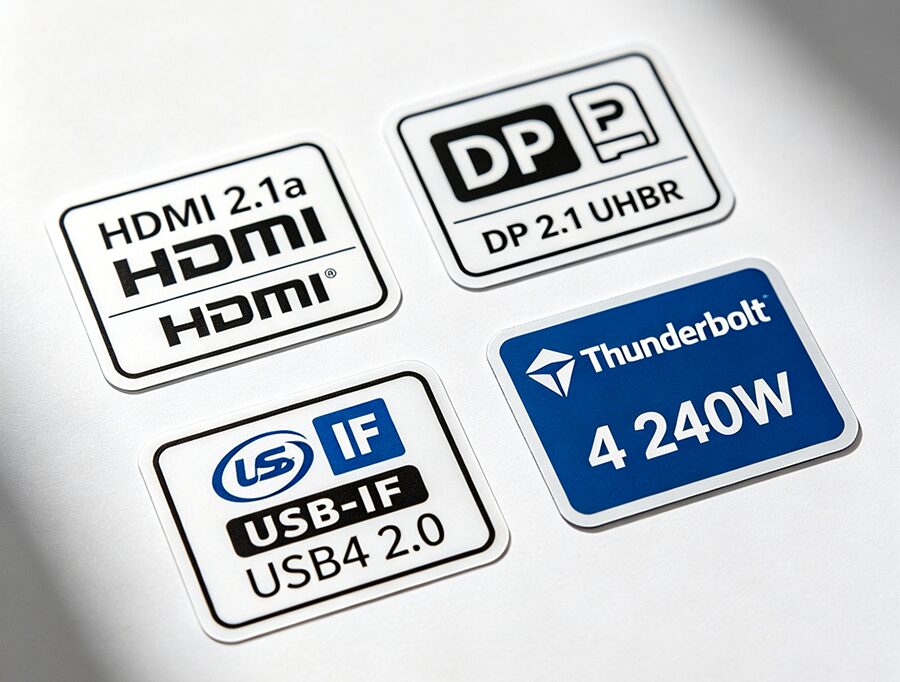
Cheap no-brand cables often lie about their specs to cut costs:
- Avoid “HDMI 2.1” labeled cables – only HDMI 2.1a supports DSC for 8K@120Hz output
- For DP 2.1 cables, confirm it supports UHBR10 minimum (many cheap “DP 2.1” cables only hit old DP 1.4 speeds)
- For Thunderbolt 4 cables, look for the official Intel Thunderbolt logo and 240W PD labeling (many old 100W models are still being sold as “2026 compatible”)
- Desktop use: 1-2m rigid braided cables avoid clutter and resist fraying
- VR/handheld use: 2-3m soft flat cables give you room to move without tangling
- 3m+ long runs for home theaters: Pick active fiber optic cables to avoid 8K signal degradation (priced only $5-$10 more than copper cables in 2026)
- Q: Can I use a USB4 2.0 cable instead of Thunderbolt 4 for video?
A: Yes, USB4 2.0 40Gbps cables deliver identical video and data performance to Thunderbolt 4 for 95% of use cases, and cost $5-$10 less on average. Only pick Thunderbolt 4 if you need official compatibility with Thunderbolt-only devices like eGPUs. - Q: Why won’t my USB-C to DP cable work with my VR headset?
A: 2026 VR headsets (Vision Pro, Meta Quest 4) require 40Gbps+ data bandwidth for lossless streaming, which standard video-only DP/HDMI cables don’t support. Use a Thunderbolt 4 or USB4 2.0 cable for VR connections. - Q: Do I need Thunderbolt 5 in 2026?
A: No for most users. Thunderbolt 5’s 80Gbps bandwidth is only necessary for pro users running dual 8K monitors or 8K live capture cards. Thunderbolt 4 covers all consumer use cases at a much lower price. - Q: Will 2026-spec cables work with my older 4K monitor?
A: Yes, all 2026 USB-C video cables are fully backward compatible with older 4K/1080p displays and devices, so you can future-proof your setup without upgrading all your gear at once.
Still unsure which cable works with your VR headset, gaming handheld, or AI PC? Drop a comment below with your device and monitor model, and we’ll send you a free personalized recommendation within 24 hours.

Comments
Post a Comment